A tree typically also performs some look-and-feel-specific painting to indicate relationships between nodes. You can customize this painting in a limited way. First, you can use tree.setRootVisible(true) to show the root node or tree.setRootVisible(false) to hide it. Second, you can use tree.setShowsRootHandles(true) to request that a tree's top-level nodes — the root node (if it is visible) or its children (if not) — have handles that let them be expanded or collapsed.
If you are using the Java look and feel, you can customize whether lines are drawn to show relationships between tree nodes. By default, the Java look and feel draws angled lines between nodes. By setting the JTree.lineStyle client property of a tree, you can specify a different convention. For example, to request that the Java look and feel use only horizontal lines to group nodes, use the following code:
tree.putClientProperty("JTree.lineStyle", "Horizontal");
To specify that the Java look and feel should draw no lines, use this code:
tree.putClientProperty("JTree.lineStyle", "None");
The following snapshots show the results of setting the JTree.lineStyle property, when using the Java look and feel.
No matter what the look and feel, the default icon displayed by a node is determined by whether the node is a leaf and, if not, whether it is expanded. For example, in the Windows and Motif look and feel implementations, the default icon for each leaf node is a dot; in the Java look and feel, the default leaf icon is a paper-like symbol. In all the look-and-feel implementations we have shown, branch nodes are marked with folder-like symbols. Some look and feels might have different icons for expanded branches versus collapsed branches.
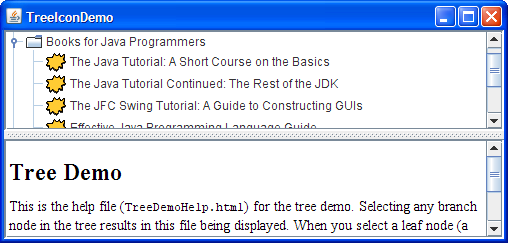
You can easily change the default icon used for leaf, expanded branch, or collapsed branch nodes. To do so, you first create an instance of DefaultTreeCellRenderer. You could always create your own TreeCellRenderer implementation from scratch, reusing whatever components you like. Next, specify the icons to use by invoking one or more of the following methods on the renderer: setLeafIcon (for leaf nodes), setOpenIcon (for expanded branch nodes), setClosedIcon (for collapsed branch nodes). If you want the tree to display no icon for a type of node, then specify null for the icon. Once you have set up the icons, use the tree's setCellRenderer method to specify that the DefaultTreeCellRenderer paint its nodes. Here is an example, taken from TreeIconDemo.java:
ImageIcon leafIcon = createImageIcon("images/middle.gif");
if (leafIcon != null) {
DefaultTreeCellRenderer renderer =
new DefaultTreeCellRenderer();
renderer.setLeafIcon(leafIcon);
tree.setCellRenderer(renderer);
}
Running Codes
0 comments:
Post a Comment